Running WordPress on your own VPS gives you something managed hosts never will: full control of the box, no per-site pricing tiers, and infrastructure you actually own. The catch is that WordPress does not install itself. Between a fresh Ubuntu server and a working site sits a whole LEMP stack, a database, a configuration file, an Nginx server block and a TLS certificate, all of which you assemble by hand.
The problem
WordPress is famously easy to use and quietly fiddly to host well. The "five-minute install" assumes the server is already a web server. On a bare VPS it is not.
To self-host a single WordPress site you have to stand up the LEMP stack (Linux, Nginx, MySQL, PHP), install PHP with the right extensions, create a database and a dedicated database user, download and extract WordPress into the correct web root, write wp-config.php, author an Nginx server block that hands .php requests to PHP-FPM, set the right file ownership so WordPress can write uploads without running as root, and finally issue a TLS certificate. Miss one detail and you get a white screen, a database connection error, or a site that works but is quietly insecure.
The pain
None of these steps is hard on its own. The trouble is that they interact, and the failure modes are unhelpful.
- Get the file ownership wrong and WordPress cannot update plugins or upload media, but the error just says "unable to create directory".
- Forget the PHP MySQL extension and the installer loops back to the config screen with no explanation.
- Leave the Nginx
try_filesand PHP location block slightly off and permalinks 404 while the homepage loads fine. - Skip the database user and grant, and you either run the site on the MySQL root account or spend an evening debugging access denied.
- Forget to renew, or never automate, the TLS certificate, and the padlock disappears three months later.
For a freelancer or agency hosting several client sites, every server built by hand is built a little differently. Six months on, nobody remembers which box got the Redis object cache, which PHP version each site runs, or how permissions were set.
The traditional way: an honest walkthrough
Here is the shape of a manual WordPress deployment on Ubuntu once the server itself is up. This is an outline, not a recipe: it sketches the roughly ten discrete steps involved so you can see how much is going on, without being a script you paste and run.
# Install Nginx, PHP-FPM and the PHP extensions WordPress needs
sudo apt install nginx php-fpm php-mysql   # + the other extensions WordPress needs
                                           # (mbstring, xml, curl, gd, zip, imagick...)

# then: create the MySQL database + a dedicated user + grant (never the root account
#       — get the grant scope wrong and you are either locked out or over-exposed),
#       download & extract WordPress into the web root, copy wp-config and wire in the
#       DB credentials plus fresh salts, then set www-data ownership with the right
#       directory/file modes so PHP-FPM can write uploads but not everything...

# ...then an Nginx server block with the PHP-FPM location + a try_files rule for
#    permalinks (easy to get subtly wrong — permalinks 404 while the homepage loads),
#    enable the site and reload Nginx, then certbot for TLS — which you also have to
#    remember to auto-renew.
That is around ten separate steps, each with its own way to go wrong: a missing PHP extension that stalls the installer, a try_files rule that breaks permalinks, a grant that leaves the database over-exposed, a certificate nobody renews. Even when you know the stack, working through it carefully takes the better part of an hour, and any one step you fumble or skip leaves the site broken or quietly insecure. There is real value in understanding this stack. There is very little value in walking the whole fiddly sequence, from memory, for every new client site.
The StackPilot App workflow
StackPilot App is a local-first VPS Operations Platform. It runs on your own machine, connects to your server over SSH, and turns that whole LEMP-plus-WordPress checklist into a short form. Your credentials never leave your computer, and there is no cloud control plane sitting between you and your server.
Here is the whole flow end to end before we break it down step by step.
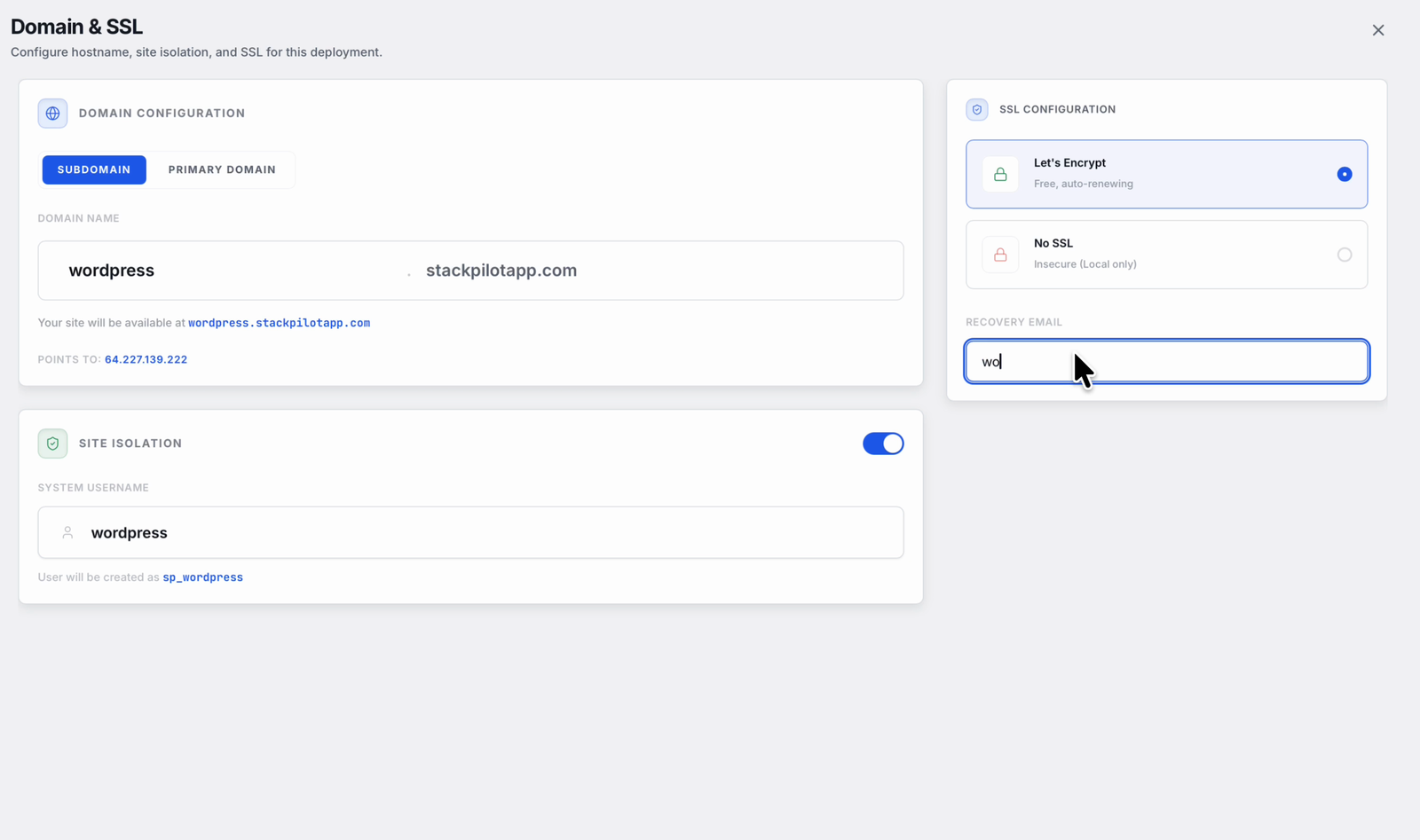
The install runs through one short wizard. You set the site domain and SSL, and StackPilot App creates an isolated system user for the site:
Step 1: Choose the one-click WordPress installer
On a server that already has its base stack, open New Site and pick WordPress from the one-click installers. StackPilot App knows WordPress needs PHP with the standard extensions, an Nginx server block shaped for permalinks, and a database, so it plans all of that for you rather than asking you to assemble it.
Step 2: Set your domain
Enter the domain the site will answer on, for example example.com. StackPilot App uses it to name the web root and to generate the Nginx server block, complete with the try_files rule and the PHP-FPM location that WordPress permalinks depend on.
Step 3: Let the database create itself
You do not open a mysql prompt. StackPilot App creates the WordPress database and a dedicated database user, generates a strong password, and wires those credentials straight into wp-config.php. The site never runs on the MySQL root account, and the generated password stays on your server.
Step 4: Install and secure with TLS
StackPilot App downloads WordPress, extracts it into the web root, sets www-data ownership so PHP-FPM can write uploads safely, and issues a TLS certificate over Let's Encrypt so the site is served over HTTPS from the first visit. A few minutes later you have a live WordPress site instead of a to-do list, ready for the famous five-minute install screen.
Why this works
It is worth understanding what StackPilot App actually does, because it is the same work you would do by hand, done consistently.
- The LEMP stack is managed. Nginx, PHP-FPM and MySQL are installed and configured together, with the PHP extensions WordPress expects. No hunting down
php-mysqlafter the installer stalls. - Permissions are correct by default. The web root is owned by
www-datawith sane directory and file modes, so WordPress can update plugins and store uploads without running as root. - Each site is isolated. Its own web root, its own database, its own database user with a scoped grant. One site's credentials do not unlock another.
- TLS is automated. The certificate is issued as part of the deploy and renews on its own, so the padlock does not quietly vanish three months later.
FAQ
Does StackPilot App support WordPress, or only Laravel? Both. WordPress is a first-class one-click installer. Laravel and other PHP apps are supported too, but you do not need to be a Laravel developer to use the WordPress workflow.
Can I self-host several WordPress sites on one VPS? Yes. Each site gets its own web root, database and database user, and its own Nginx server block. You can run several isolated sites on a single server instead of paying a managed host per site.
Does the one-click installer set up the database and TLS as well?
Yes. It creates the database and a dedicated user, wires the credentials into wp-config.php, sets www-data ownership, and issues a Let's Encrypt certificate so the site is served over HTTPS.
Which VPS providers does this work with? Any provider whose Ubuntu or Debian VPS you can reach over SSH. One-click server provisioning is live for AWS, DigitalOcean and Vultr, and beyond those you can bring any SSH-reachable VPS and connect it.
What operating systems does StackPilot App run on? macOS is generally available, and Windows is in public beta.
Summary
Self-hosting WordPress means owning the whole LEMP stack: Nginx, PHP-FPM and its extensions, a database and user, the web root and permissions, an Nginx server block that respects permalinks, and TLS. Done by hand it is a long, easy-to-fumble checklist you run once per site. The commands are worth understanding once. They are not worth retyping for every client. With StackPilot App you pick the one-click WordPress installer, set a domain, and get a managed LEMP stack, an auto-created database, correct permissions and automated TLS in minutes, with your credentials never leaving your machine.
Ready to host WordPress on infrastructure you own? Download StackPilot App or explore the features first.